Powerful analytics in a user-friendly package with the set control



We’re expanding the range of options for how people interact with Tableau dashboards. Coming in Tableau 2020.2, we’re excited to announce another powerful analytics enhancement: the set control.
The set control allows you to alter the membership of a set—with the same ease and familiarity as using a quick filter—to drive complex analysis. Similar to how set actions tap into new analytical options through direct interactivity with marks on the visualization, the set control allows for interactivity with a filter instead. You can now choose the type of interactivity that best suits your desired use case—working with a list or working with marks—and even use the two together.
The set control supports both single and multiple selection. Simply click to select or deselect items to control which values are in the set—these selections act as inputs that can be fed into calculations that drive the visualization. End users now have a straightforward way to leverage the complex calculations that authors have already created to drive to their own insights. And since the domain refreshes automatically, the freshest data is always reflected in your dashboard.
This unique set of capabilities complements parameters, which only support single selection. Due to its search capability, the set control also works well with larger data sets, which complements the direct interactivity of set actions.
Using the set control is simple. Right-click on a set to access its context menu and select “Show Set”—that’s it!
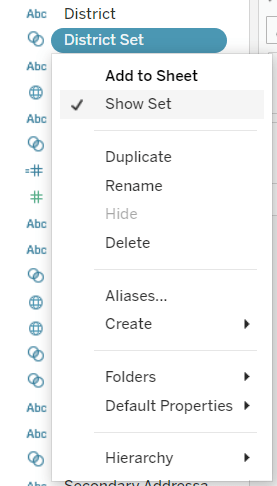
One caveat: you’ll need to first use the set in a calculation or place it on a shelf before the “Show Set” option becomes enabled.
Let’s take a look at some great ways to use the new set control feature. In the examples below, we’re looking at a data set that tracks the inflation-adjusted prices of London real estate from 1985 to 2016.
Proportional Highlighting
You might have already seen how set actions enable proportional highlighting, a method to reveal how selected items contribute to the broader whole. (If you haven’t, check out Andy Cotgreave’s excellent blog post.)
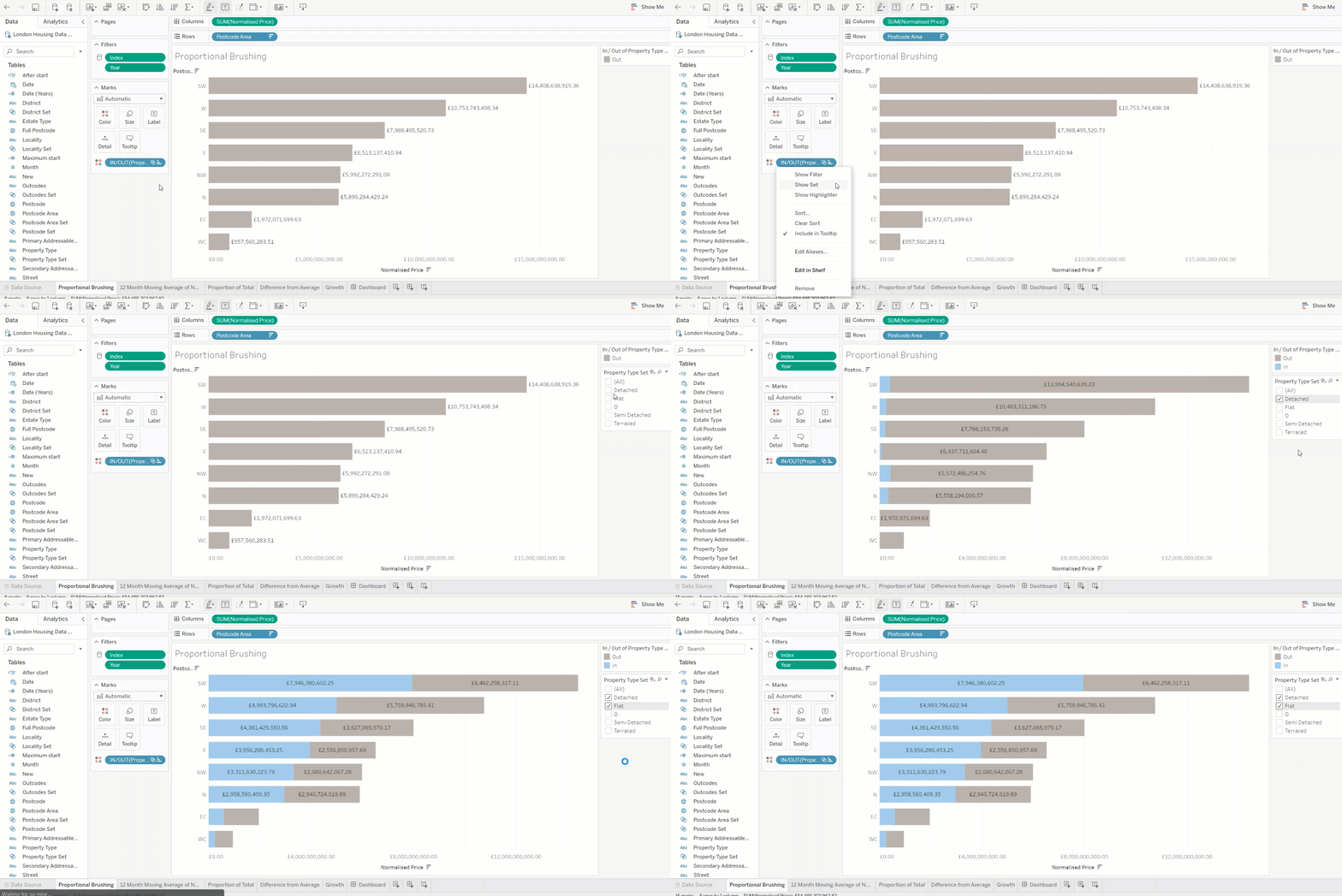
Unlike set actions, the set control allows for proportional highlighting without the need for a secondary viz. Let’s examine how individual property types contribute to the total real estate value. We’ve created a set based on Property Types and placed it on Color. We can now reveal the set control via “Show Set” and adjust the in/out membership directly through the card. It’s as simple as that!
Coordinated Views on a Dashboard
In Tableau, a set’s in/out membership is always kept in sync throughout the visualizations and sheets of the workbook. A single set can enable a range of coordinated behaviors on your dashboard.
This dashboard showcases statistics of selected London districts. All of the vizzes are driven by a common Districts set. Users can select the Districts they’re interested in, and all of the vizzes update in turn to match the selection.
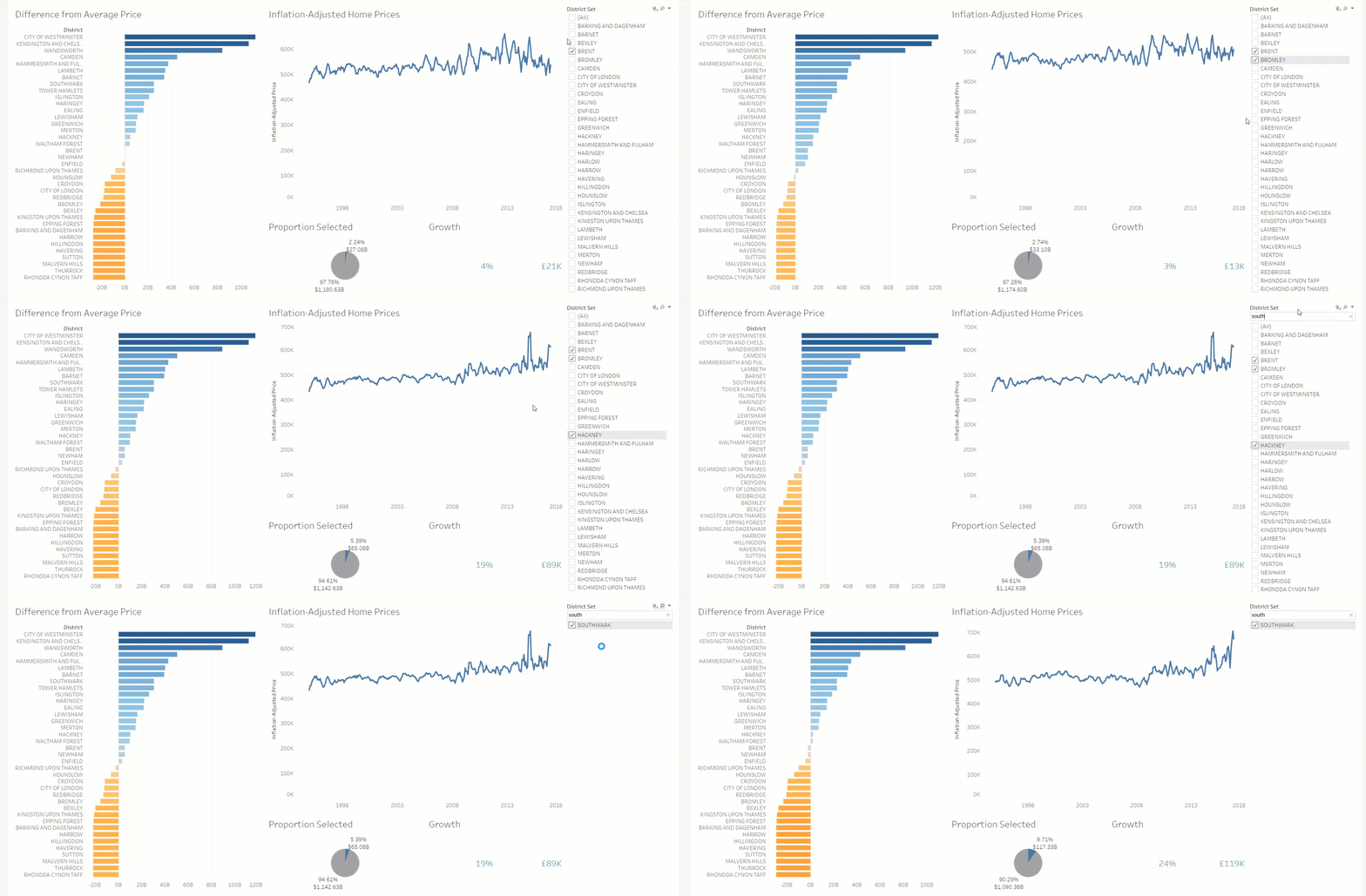
The set control allows users to designate the inputs that drive a wide range of analytics. And since it shares the same interface and behavior as filter cards, users will instantly recognize how to use it. Whether your scenario is crunching KPIs, comparing parts to a whole, tracking change through time, or anything else you can dream up with Tableau’s rich calculation language, the set control ensures that any user can successfully tap into the analytics you’ve created for them. While the underlying set analytics can be mind-bogglingly complex, the actual experience of using the set control is always simple and intuitive.
Combining set control with set actions
At Tableau, we believe in the power of interactivity to drive engagement and delight. It’s for this reason that many of our most commonly used cards, such as filters and parameters, have congruent actions that support direct interactivity on the viz. There are good reasons to choose one over the other; for example, cards are better suited for larger data sets, while using actions in the context of a viz offers valuable, uninterrupted flow of analysis. And of course, you can offer the two together to give people the flexibility to choose how they wish to interact with the data.
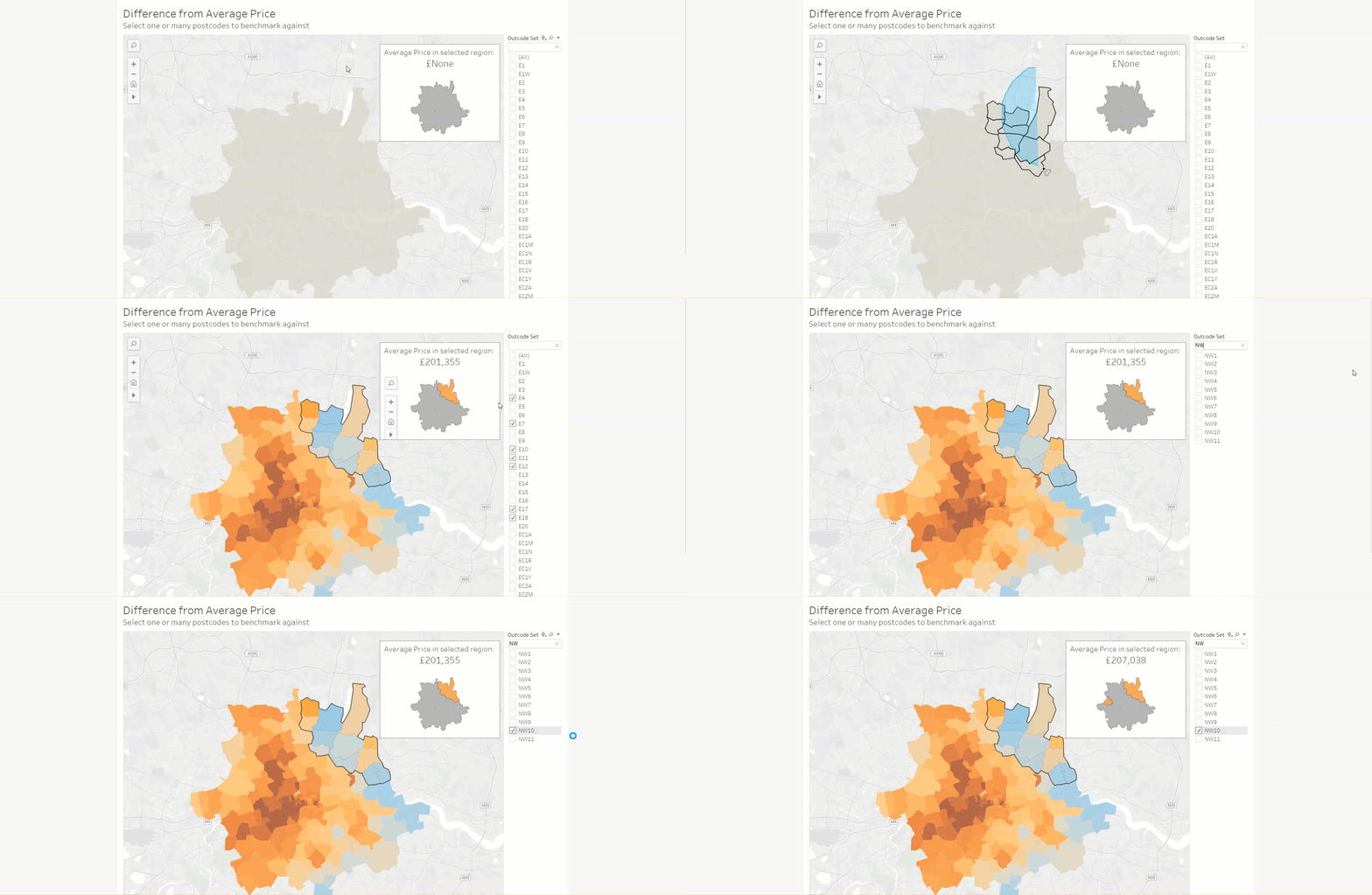
As I mentioned earlier, the in/out membership of a set is always kept in sync throughout the workbook. When you make a selection using set actions, the set control will automatically update as well. For example, you can use set actions to efficiently select a large swathe of values on a viz, and then use the set control to hunt down the remainder.
Take your analysis further
Whereas most other cards are locked into specific purposes (e.g. quick filters, highlighter), the set control is a multi-purpose card, allowing for a nearly unlimited number of use cases. Set control supports both single and multiple selection, a fast keyword search, and even guarantees a consistent in/out membership across the entire workbook to keep your analyses in sync. We look forward to seeing how you take set analytics even further with the set control!
เรื่องราวที่เกี่ยวข้อง

The Tableau+ Bundle with Premium AI, Enterprise Capabilities, and Premier Success
 ตุลาคม 1, 2026
Extend Access to Embedded Tableau Content with On-Demand Access
 กรกฎาคม 22, 2026
What is Tableau Prep?
 เมษายน 30, 2026